# Product Quantities Not Synced to Sales Channels: What to Do?
#### **Check If Auto-Sync Setting Is On**
1. Go to your stores by clicking “Stores” on the side menu. [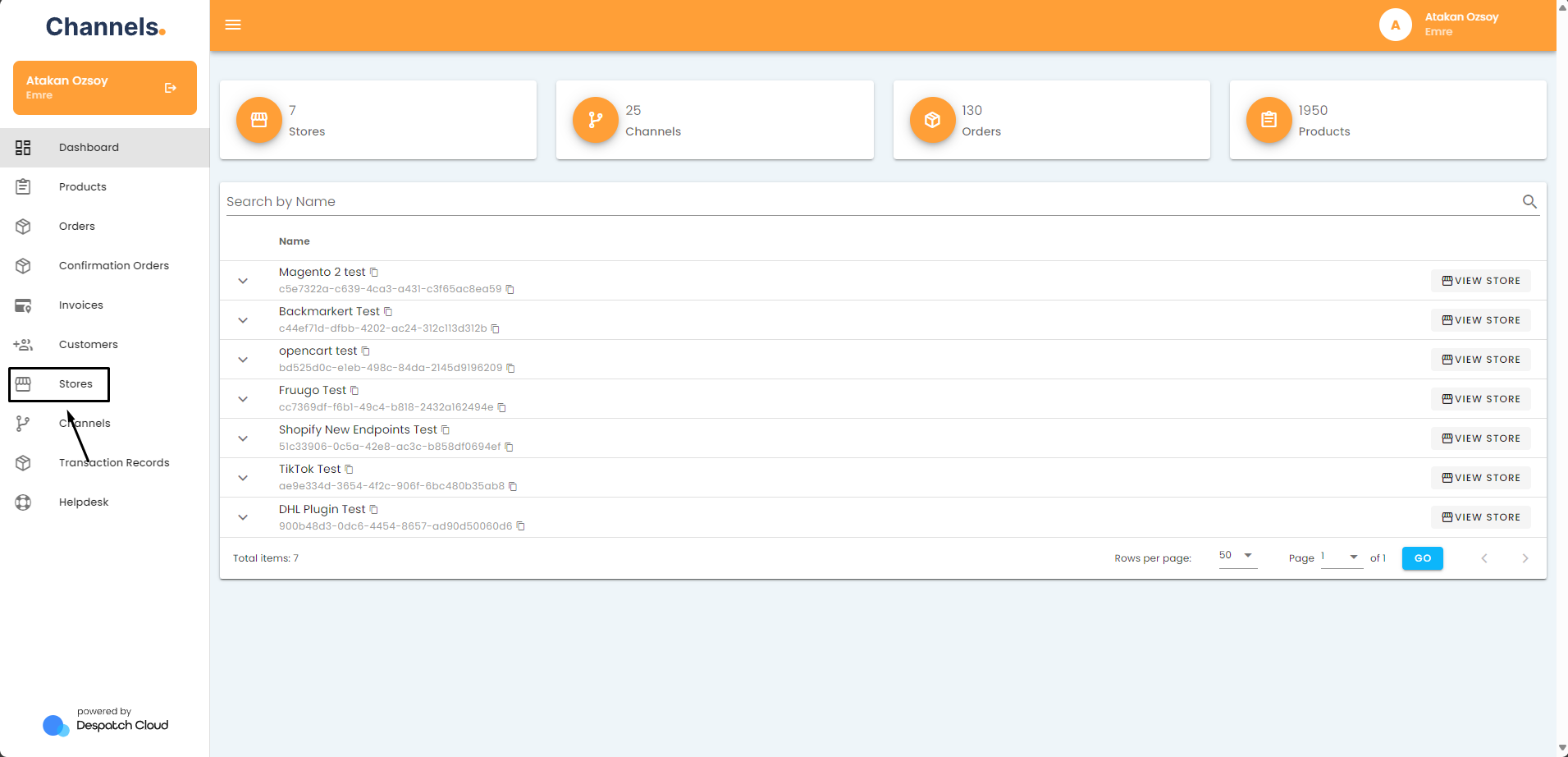](https://channels-documentation.despatchcloud.app/uploads/images/gallery/2024-04/8dCimage.png)
2. Click on the pencil icon next to the store your channel is in. [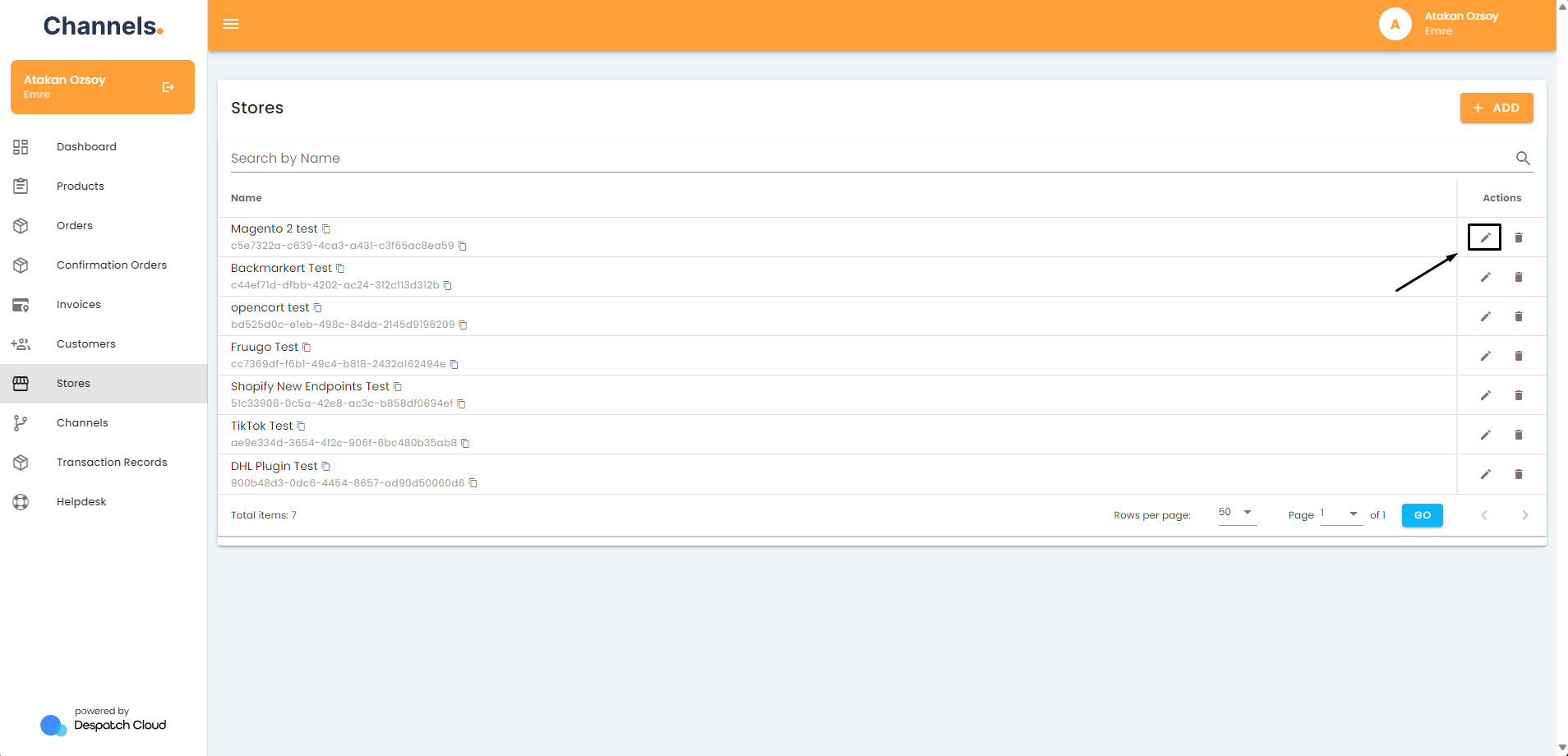](https://channels-documentation.despatchcloud.app/uploads/images/gallery/2024-04/JhNimage.png)
3. Click on the pencil icon next to the channel you'd like to activate. [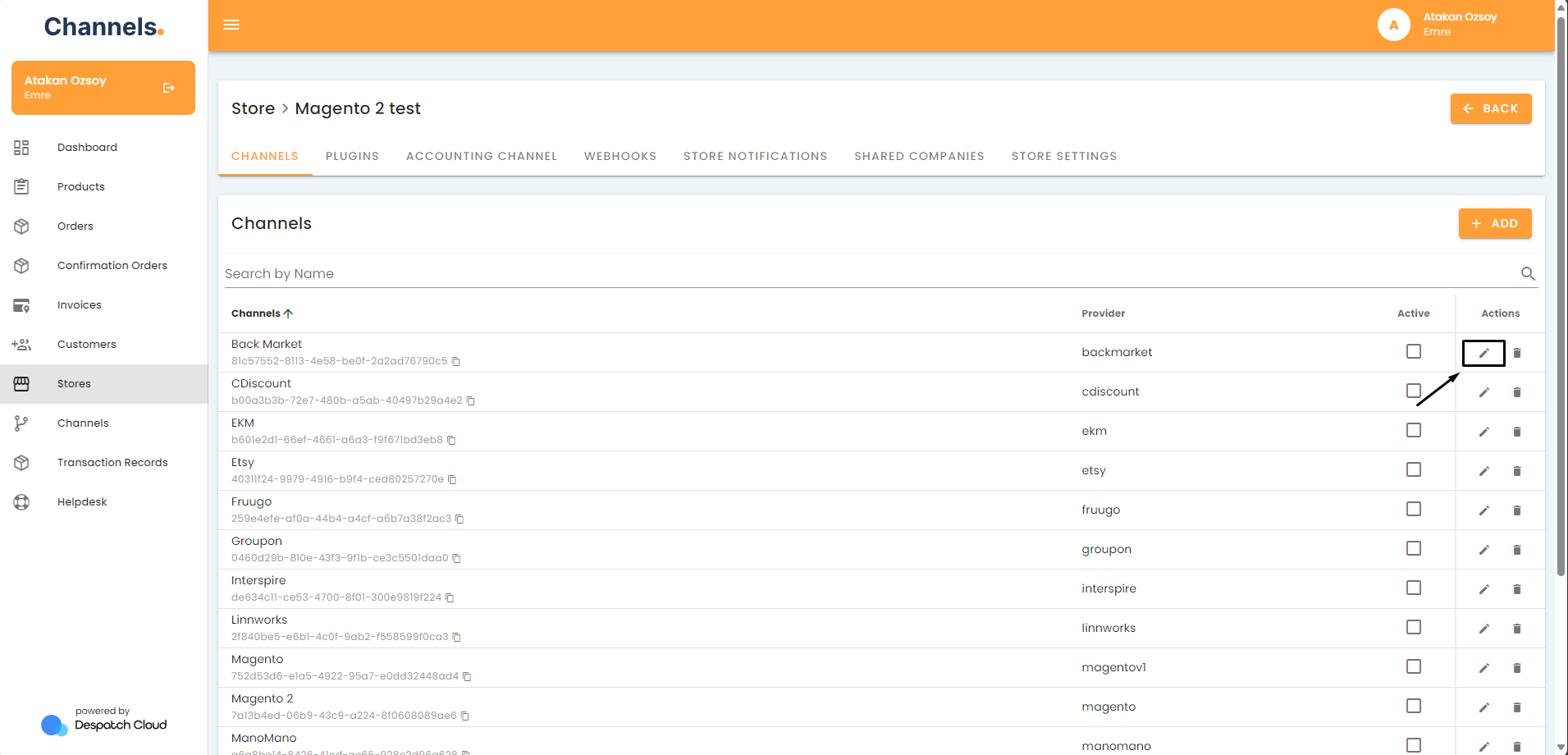](https://channels-documentation.despatchcloud.app/uploads/images/gallery/2024-04/CXTimage.png)
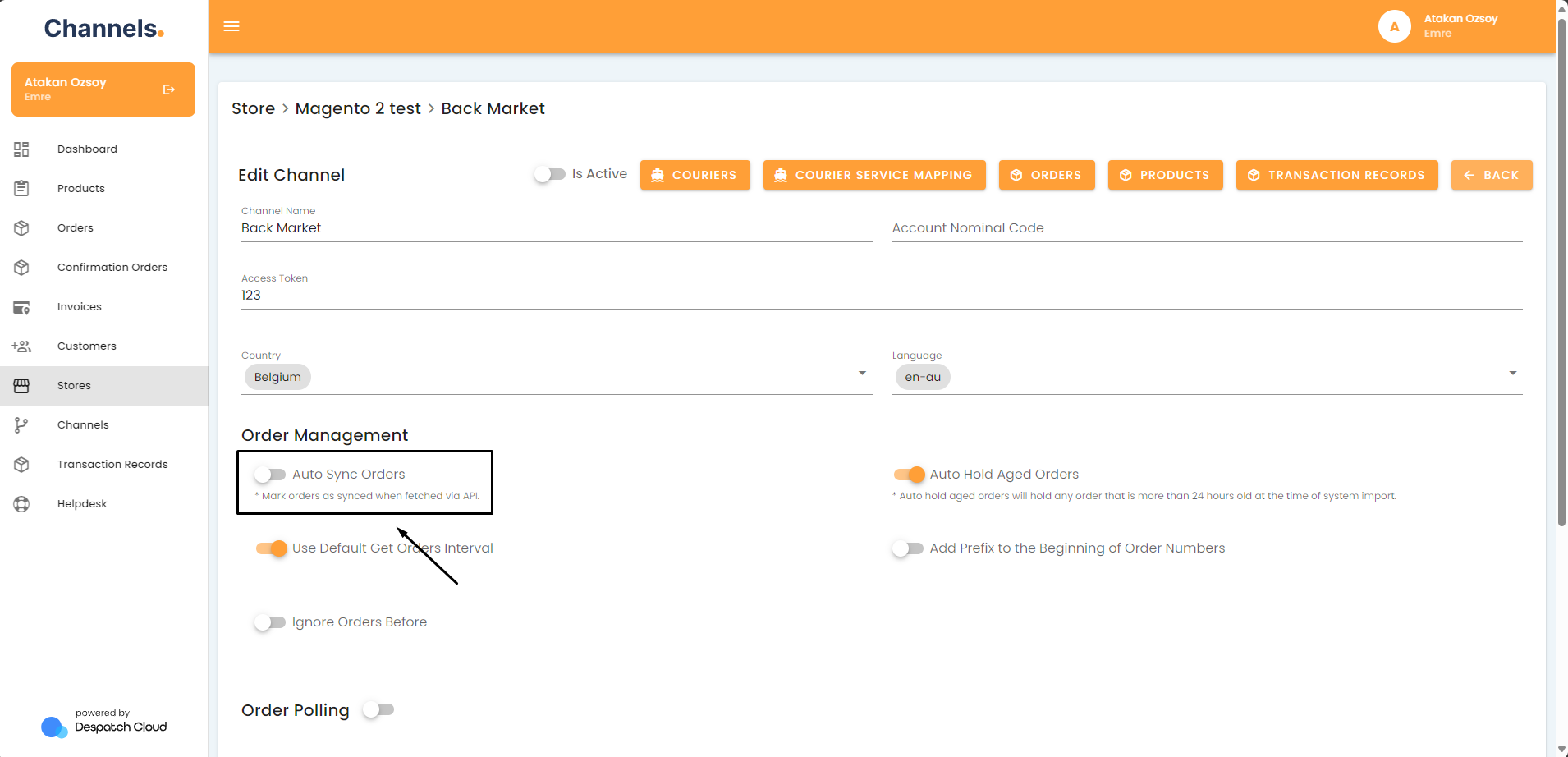
4. Check if the “Auto Sync Stock Levels” setting is on. If it's not, please turn it on.
[](https://channels-documentation.despatchcloud.app/uploads/images/gallery/2024-04/VgIimage.png)
#### **Check If the Products Are in the Main Products**
1. Go to your stores by clicking “Stores” on the side menu. [](https://channels-documentation.despatchcloud.app/uploads/images/gallery/2024-04/8dCimage.png)
2. Click on the pencil icon next to the store your channel is in. [](https://channels-documentation.despatchcloud.app/uploads/images/gallery/2024-04/JhNimage.png)
3. Click on the pencil icon next to the channel you'd like to activate. [](https://channels-documentation.despatchcloud.app/uploads/images/gallery/2024-04/CXTimage.png)
4. Switch on Stock Management, Download Products and Add To Products. [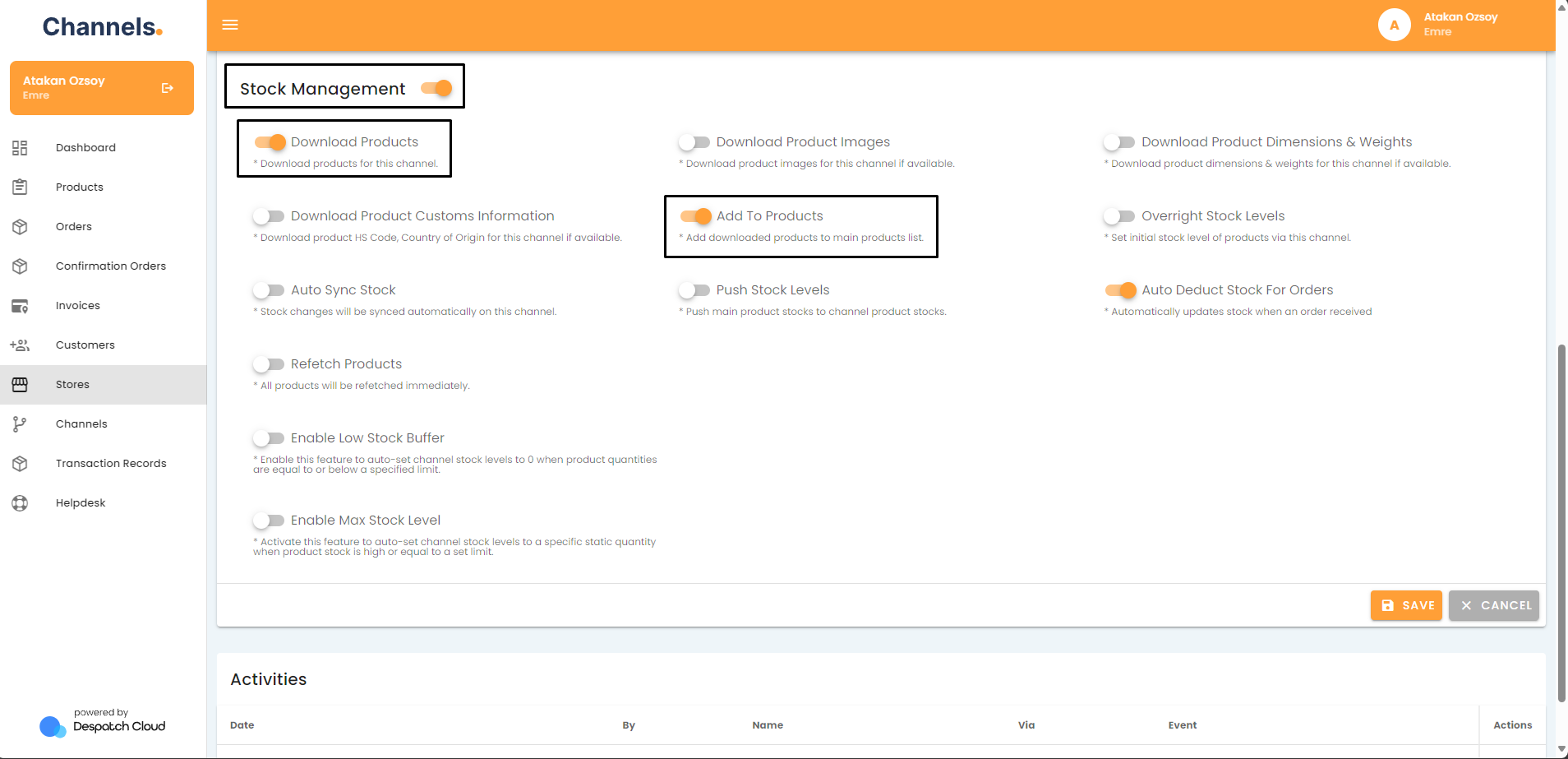](https://channels-documentation.despatchcloud.app/uploads/images/gallery/2024-04/PkEimage.png)
#### **Initiate an Order Push to the Sales Channel**
If the "Auto Sync" and the "Add To Products" settings are on, it is best to run a stock push job manually. To do that, follow these steps.
1. Go to your stores by clicking “Stores” on the side menu. [](https://channels-documentation.despatchcloud.app/uploads/images/gallery/2024-04/8dCimage.png)
2. Click on the pencil icon next to the store your channel is in. [](https://channels-documentation.despatchcloud.app/uploads/images/gallery/2024-04/JhNimage.png)
3. Click on the pencil icon next to the channel you'd like to activate. [](https://channels-documentation.despatchcloud.app/uploads/images/gallery/2024-04/CXTimage.png)
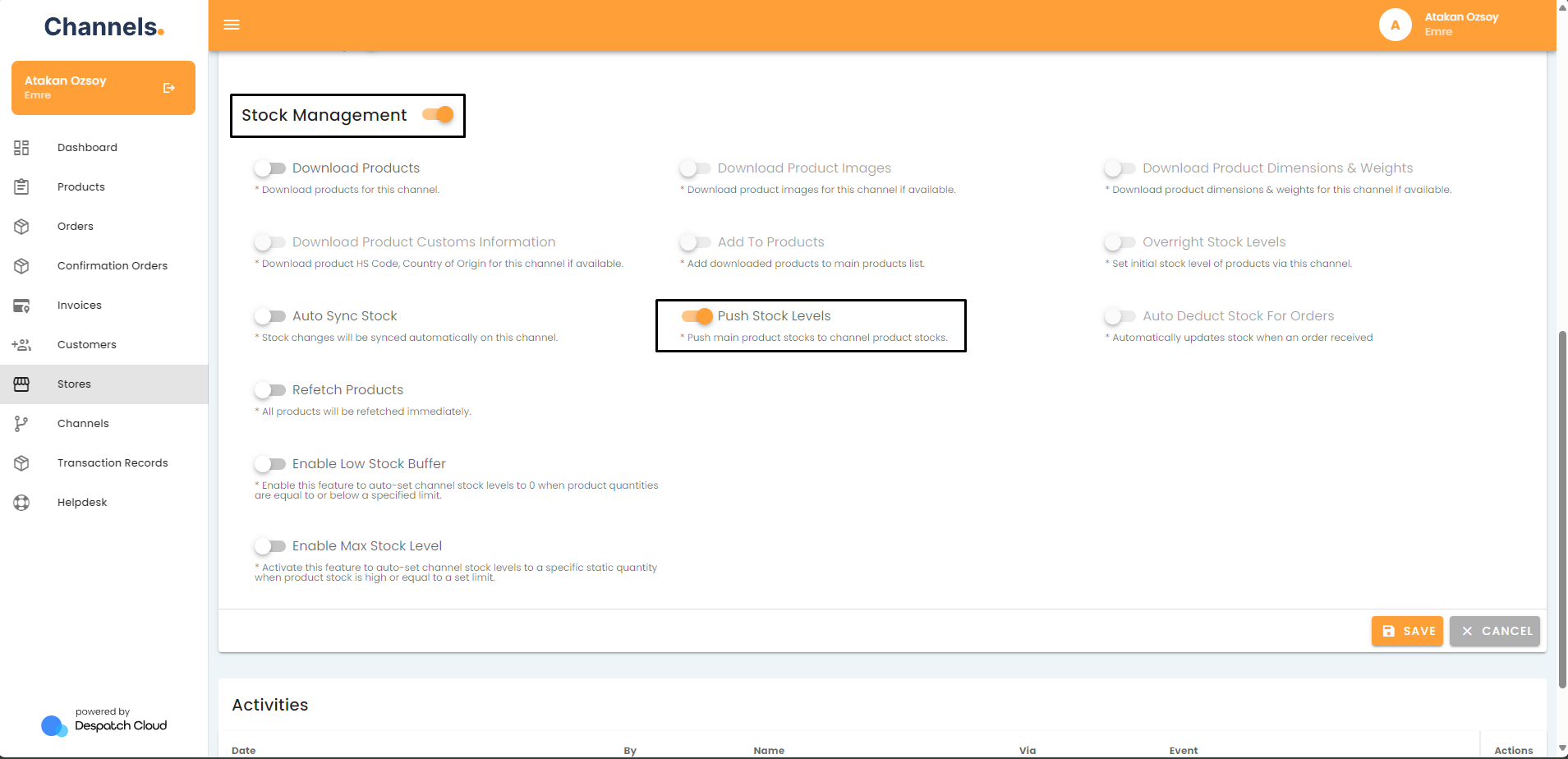
4. Turn on “Stock Management” and “Push Stock Levels”.
[](https://channels-documentation.despatchcloud.app/uploads/images/gallery/2024-04/FUcimage.png)
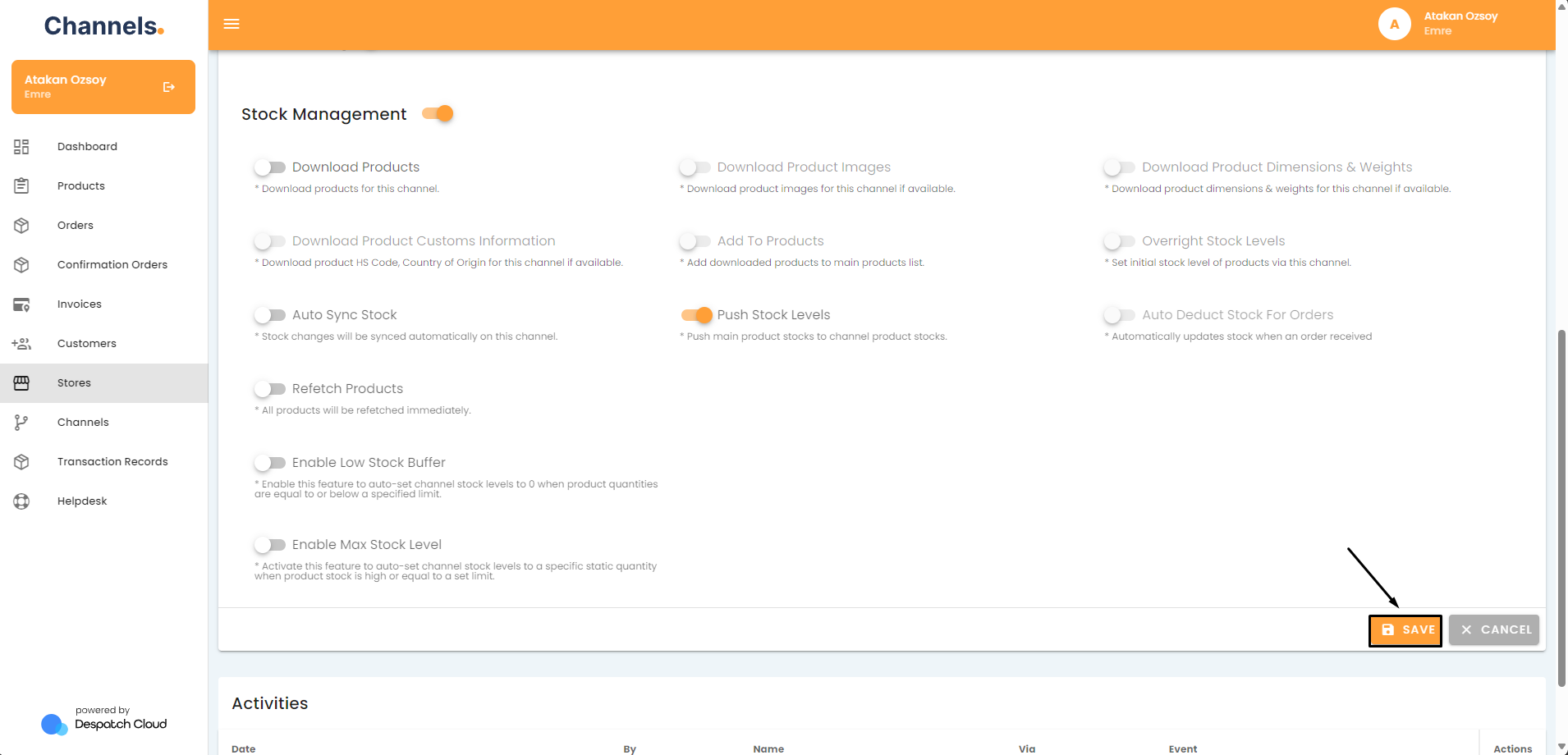
5. Click on the save button.
[](https://channels-documentation.despatchcloud.app/uploads/images/gallery/2024-04/pLiimage.png)
6. Wait a while for the system to finish stock syncing for all your products.