# Orders on Hold After Sales Channel Setup: What Does It Mean?
#### **About the "On Hold" Status**
On-hold status means these orders will not be processed. By default, we switch on the setting “Auto Hold Aged Orders” when a sales channel is created on our system. You can switch that setting off by going into the channel settings.
When this setting is on, it marks the sync status of orders that have been in existence for 24 hours or more from the order creation date.
1. Access your account and go to the left side of the screen. Click the "Stores" button.[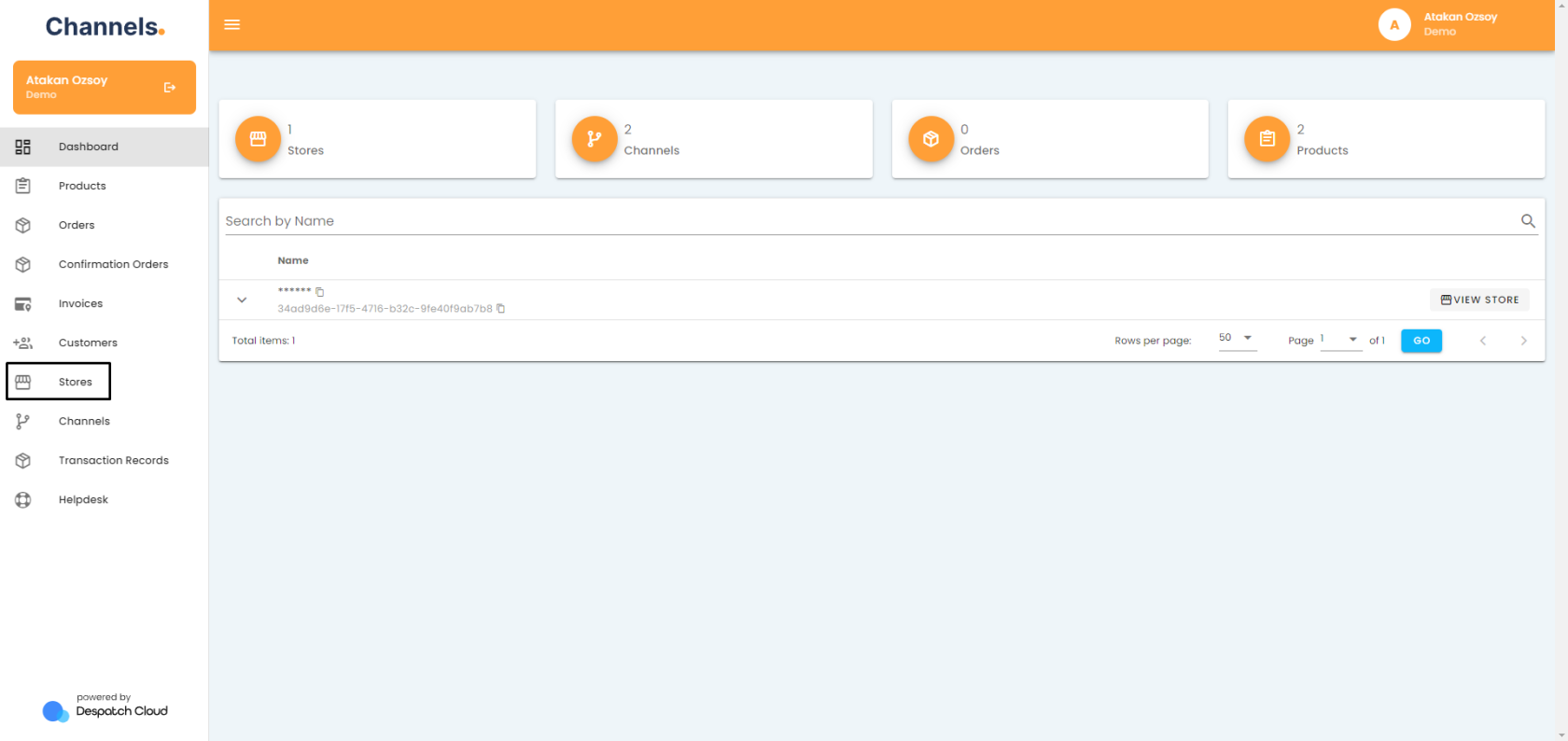](https://channels-documentation.despatchcloud.app/uploads/images/gallery/2024-04/DUXimage.png)
2. Click on the pencil icon next to the store your channel is in. [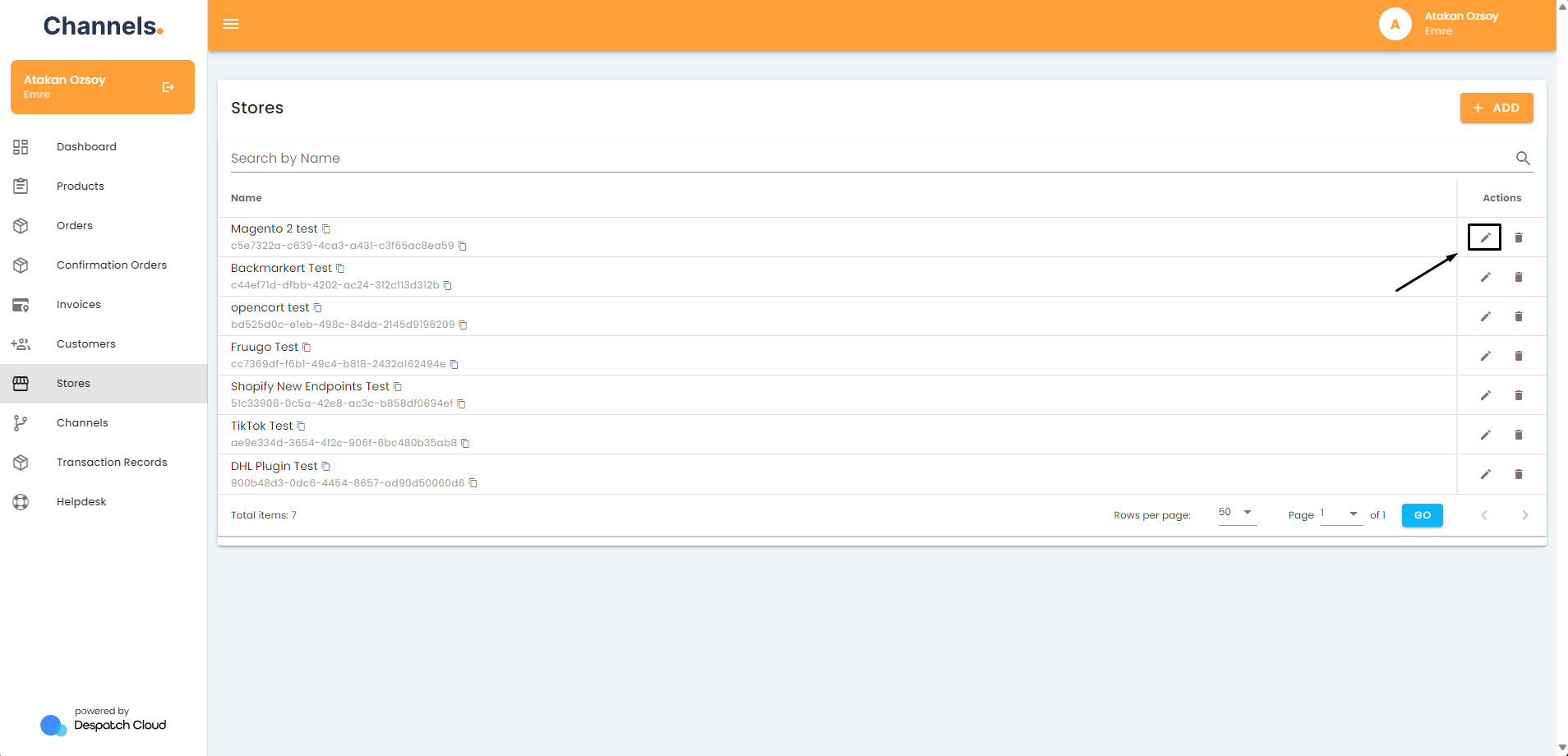](https://channels-documentation.despatchcloud.app/uploads/images/gallery/2024-04/JhNimage.png)
3. Click on the pencil icon next to the channel you'd like to check. [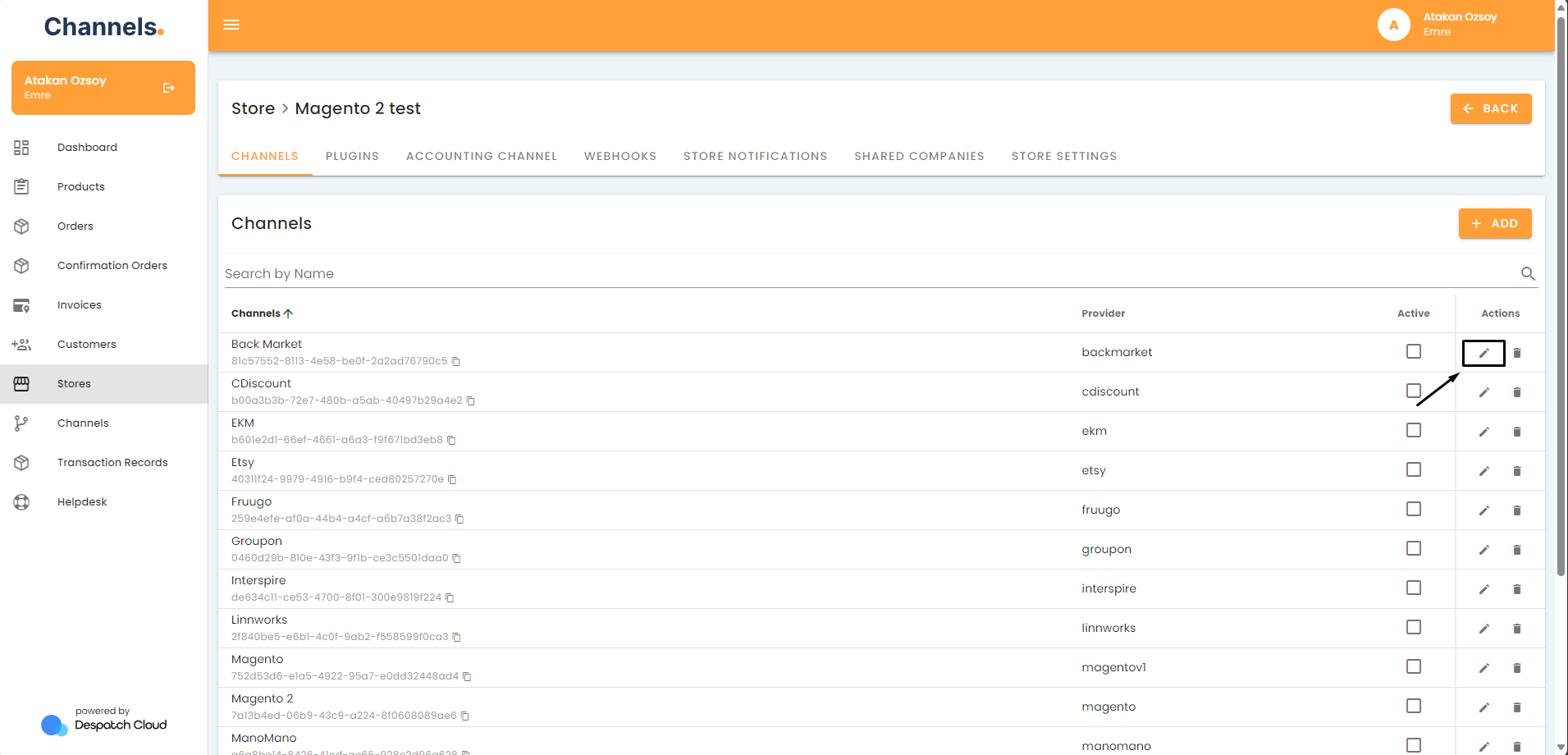](https://channels-documentation.despatchcloud.app/uploads/images/gallery/2024-04/CXTimage.png)
4. Switch off the “Auto Hold Aged Orders” setting under Order Management. [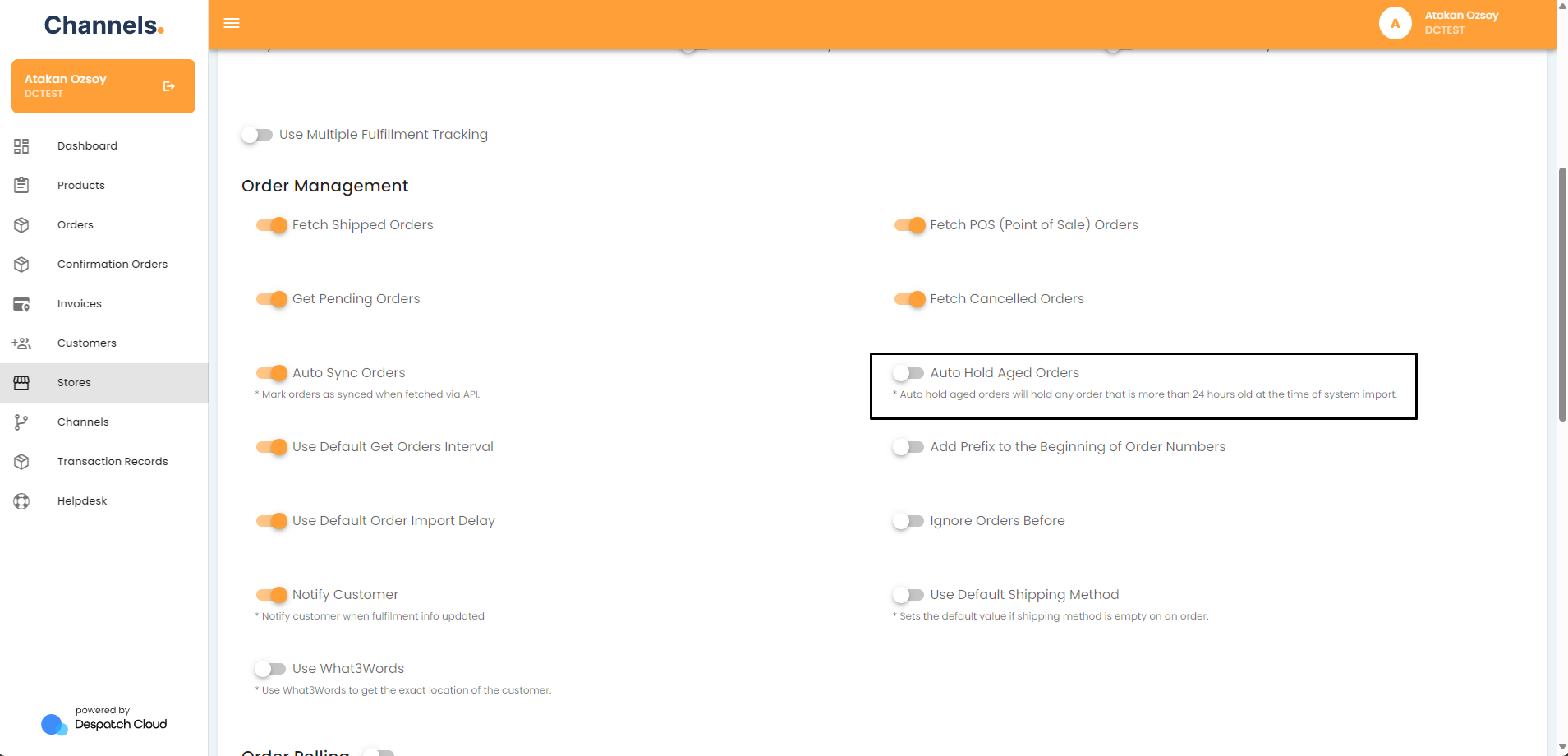](https://channels-documentation.despatchcloud.app/uploads/images/gallery/2024-04/WHaimage.png)