# How to Refetch Orders and Order Updates
#### **Try Using Order Polling**
1. Access your account and go to the left side of the screen. Click the "Stores" button.[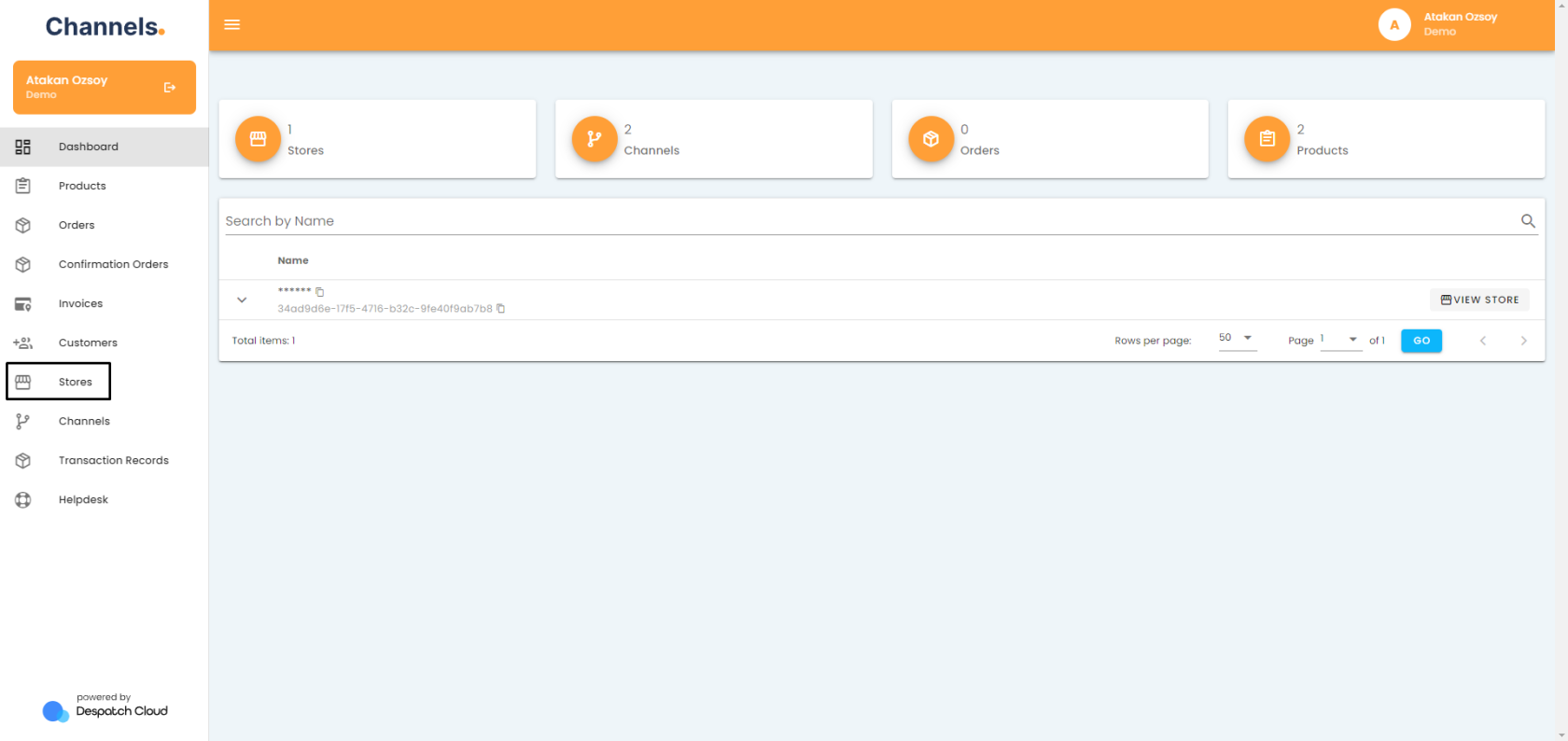](https://channels-documentation.despatchcloud.app/uploads/images/gallery/2024-04/DUXimage.png)
2. Click on the pencil icon next to the store your channel is in. [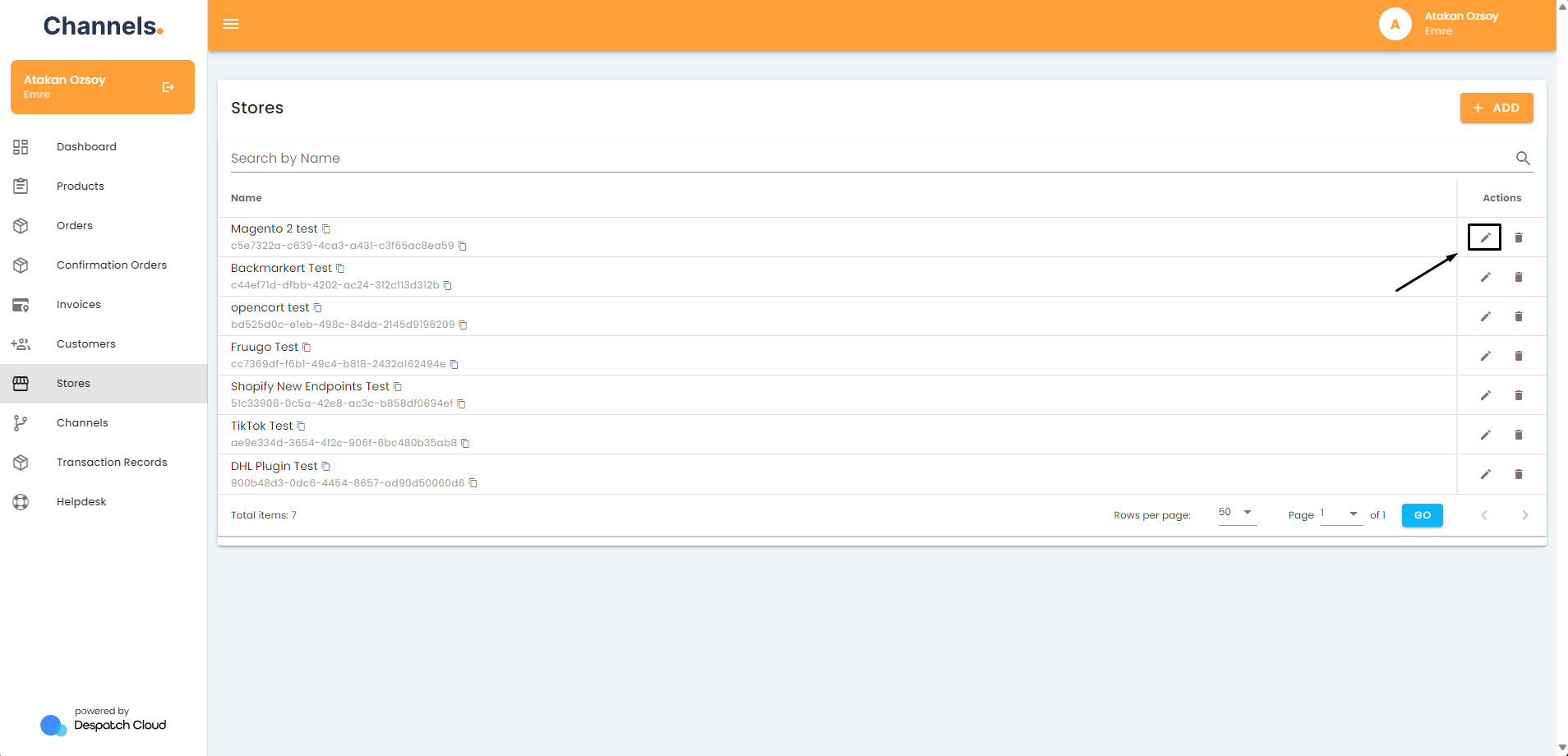](https://channels-documentation.despatchcloud.app/uploads/images/gallery/2024-04/JhNimage.png)
3. Click on the pencil icon next to the channel you want to check. [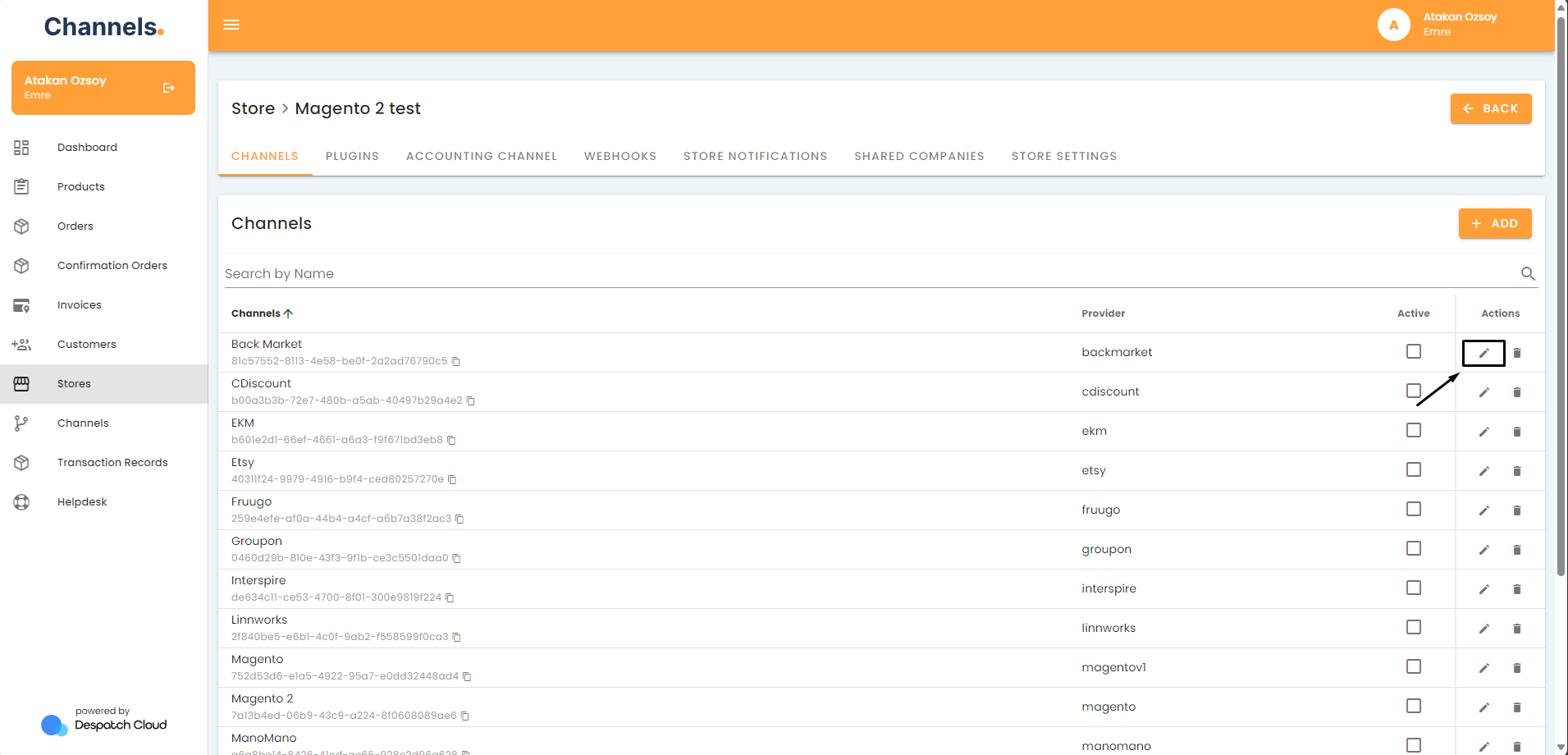](https://channels-documentation.despatchcloud.app/uploads/images/gallery/2024-04/CXTimage.png)
4. Scroll down to the “Order Polling” section and switch it on. [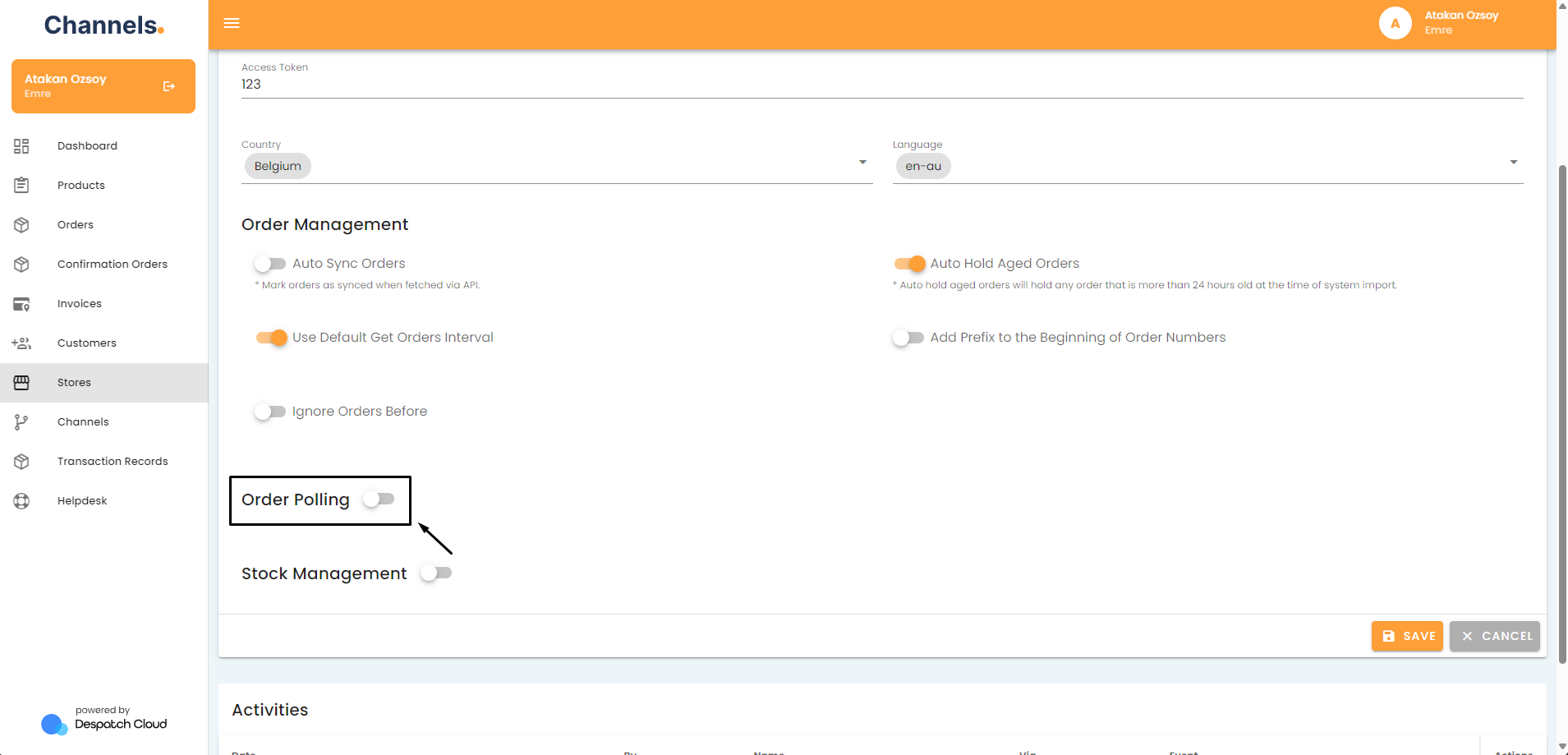](https://channels-documentation.despatchcloud.app/uploads/images/gallery/2024-04/sZ1image.png)
5. Select the date from which point the orders will start being polled. [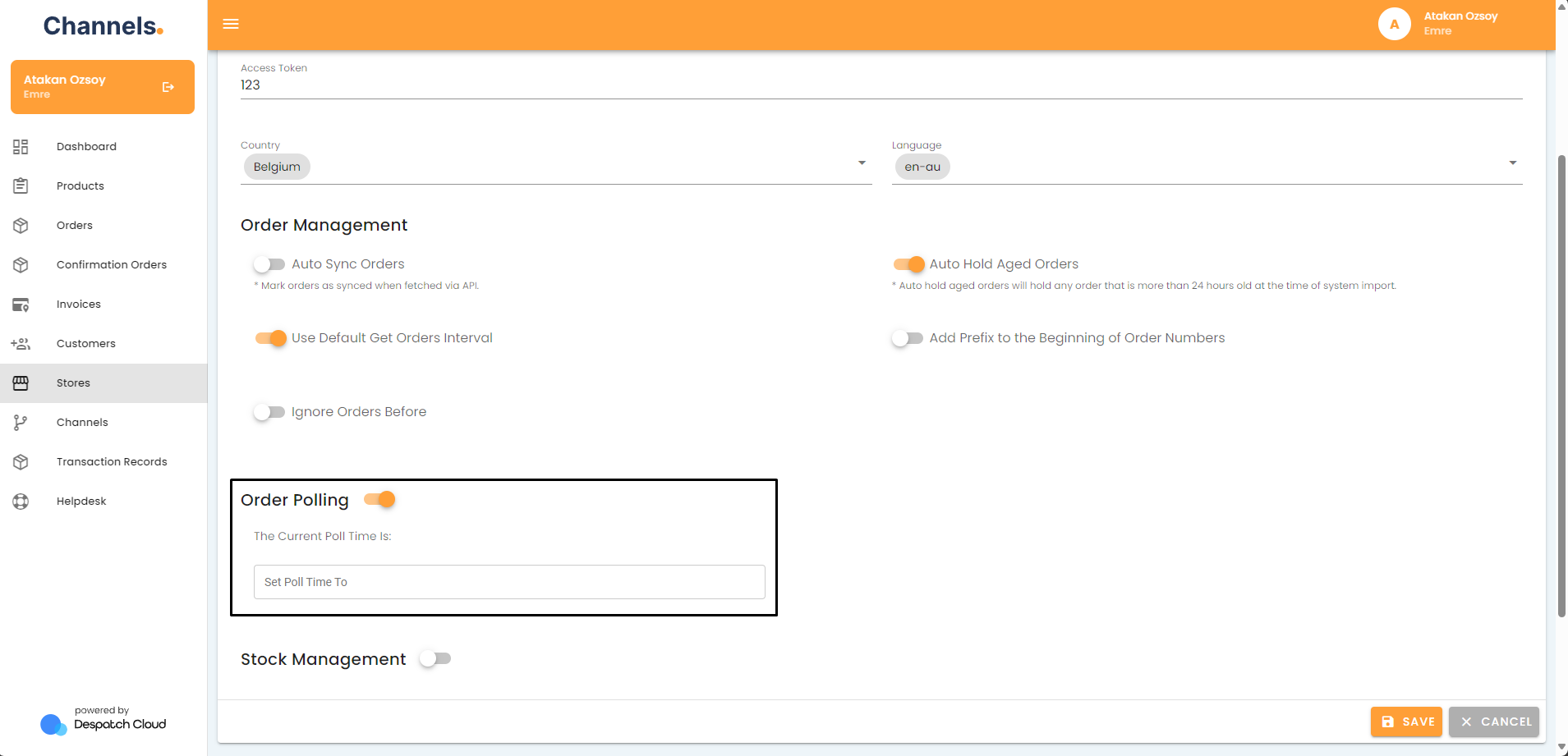](https://channels-documentation.despatchcloud.app/uploads/images/gallery/2024-04/v1pimage.png)
6. Click the Save button and wait around 3 to 10 minutes for orders to be imported into the system. If the orders you wanted are still not imported, move on to the next recommendation. [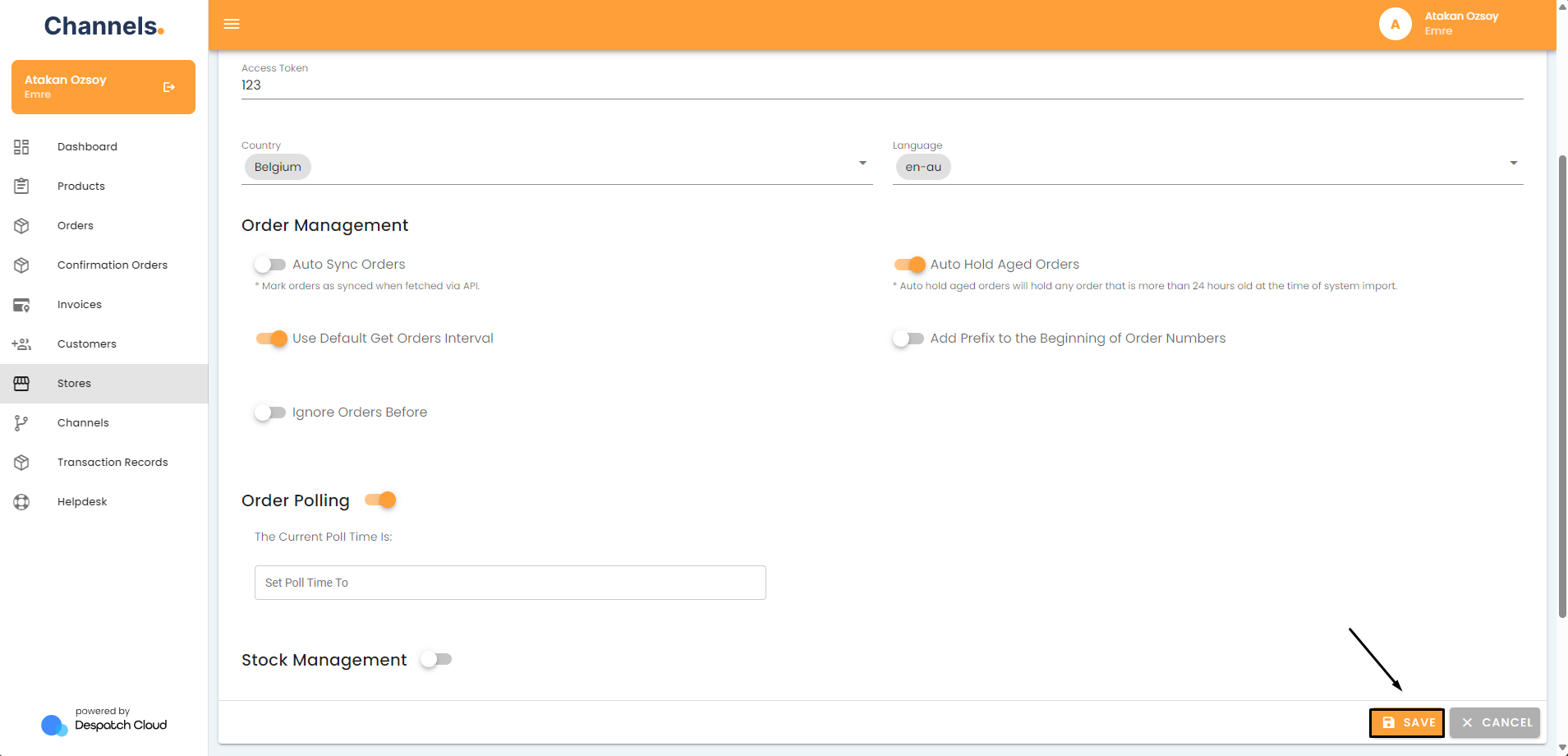](https://channels-documentation.despatchcloud.app/uploads/images/gallery/2024-04/Ch9image.png)